Understanding Your Results

Your scan is done and now there's a bunch of numbers and categories staring at you. Here's what all of it means.

The Dashboard

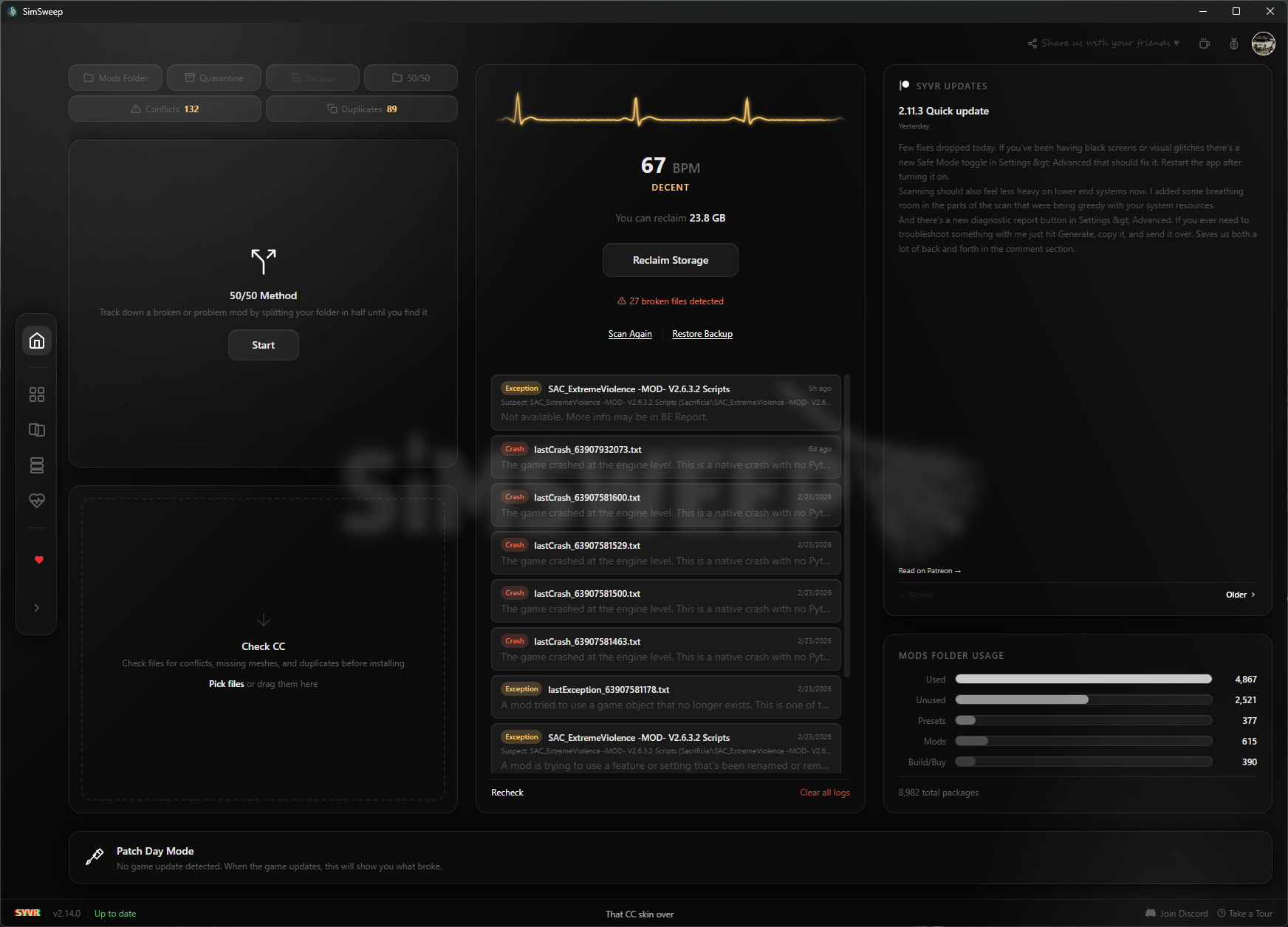
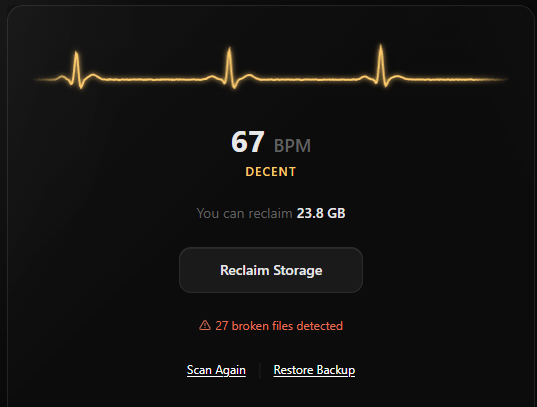
After your scan finishes, you land on the dashboard. This is your home base. The big heartbeat monitor at the top is your CC Health Score, and below that you've got cards for usage stats, quick actions, and anything that needs your attention like malware alerts or broken files.

Nothing has been moved or deleted at this point. SimSweep just read everything and is telling you what it found. You decide what to do with it.
The Dashboard

CC Health Score

The health score is a number from 0 to 100 displayed as a heartbeat monitor. It factors in how many of your files are broken, how many conflicts you have, and how much unused CC is sitting in your folder. The higher the score, the cleaner your setup.

80-100Healthy. Your folder is in good shape. Might have some minor stuff but nothing urgent.
50-79Decent. There's some stuff worth looking at. Probably some broken files or a chunk of unused CC dragging things down.
0-49Needs cleanup. Your folder has a lot going on. Broken files, conflicts, tons of unused CC, or some combination of all three.

The heartbeat animation actually responds to your score. Higher scores get a faster, healthier pulse. Lower scores look more sluggish. It's a small thing but it makes the vibe obvious at a glance.

CC Health Score

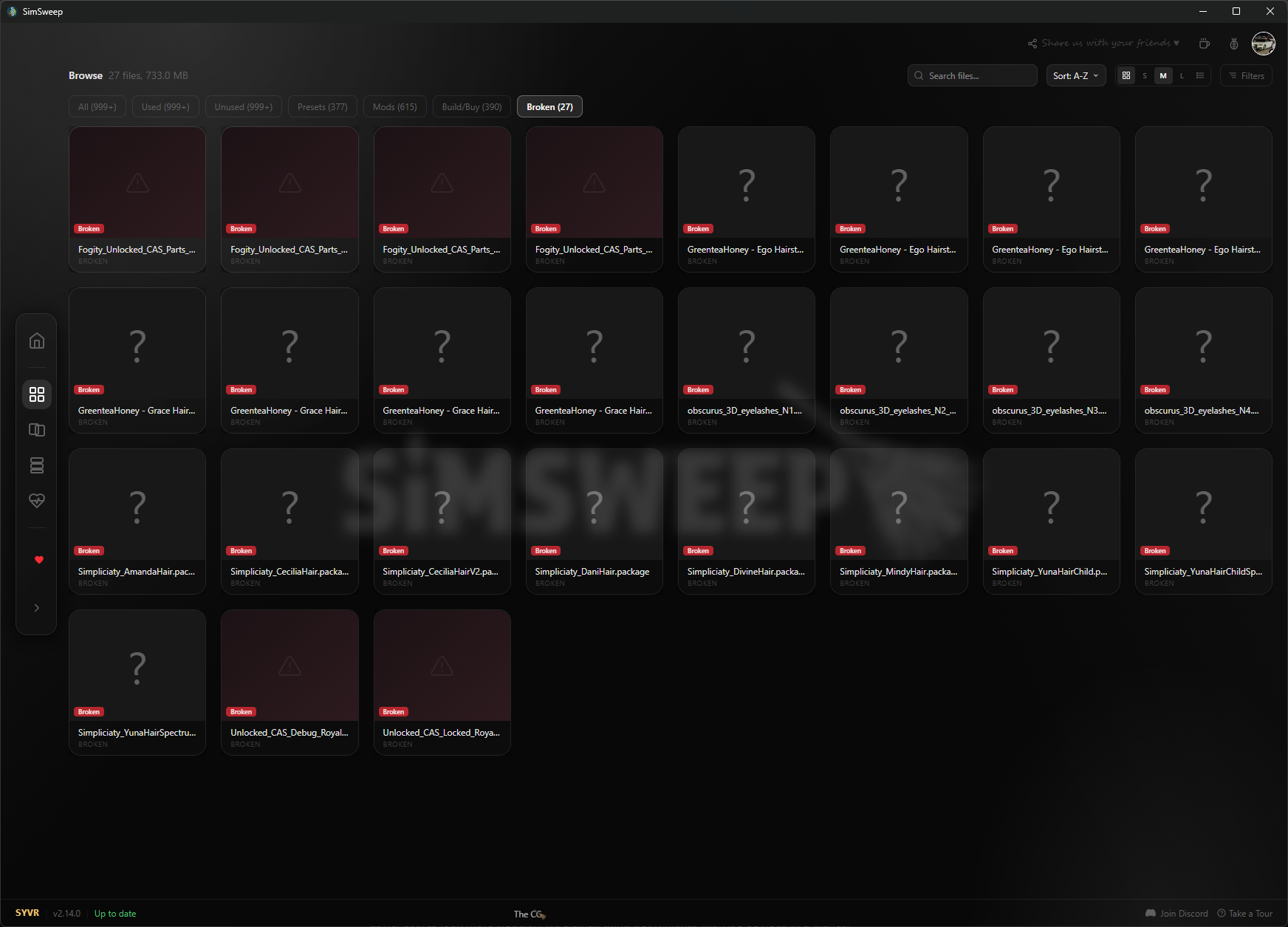
Broken CC

If SimSweep says a file is broken, it means something is wrong with it at the data level. The most common reason is a missing mesh. That means the CC references a 3D model that doesn't exist in your Mods folder or in the base game files.

This usually happens for one of two reasons:

  • You're missing a mesh pack. A lot of creators make hair or clothing sets where you need the base mesh file plus the recolors. If you downloaded the recolors but not the mesh, every recolor shows up as broken.
  • The CC needs a pack you don't own. Some CC builds on meshes from expansion packs. If you don't have that pack installed, SimSweep can't find the mesh and the file shows as broken.

You can also see files flagged as corrupt, which means SimSweep couldn't even read the file properly. That's usually a bad download or a file that got damaged somehow. Those are safe to remove.

For missing meshes, don't just delete everything right away. Check the creator's page first. You might just need to grab a mesh file you missed.

Broken CC

Conflicts

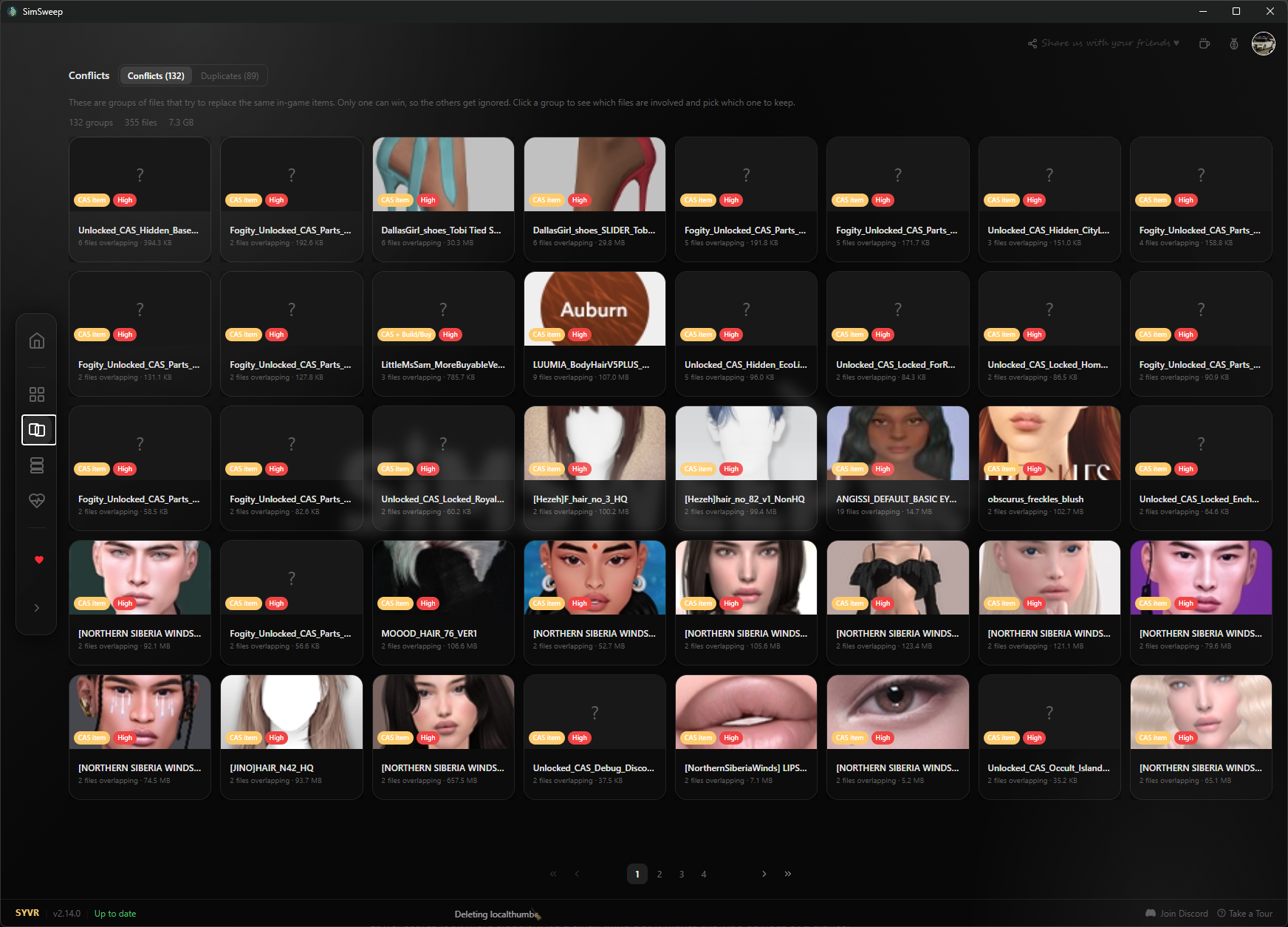
Conflicts happen when two or more .package files try to replace the same in-game resource. The game can only use one, so the other just silently loses. You won't get an error, things will just look wrong in-game and you'll have no idea why.

SimSweep groups conflicting files together and shows you exactly which resources overlap. Each group has a severity level:

High50% or more of the resources overlap. These files are almost certainly trying to do the same thing. One of them is getting completely overridden.
MediumPartial overlap. The files share some resources but not all of them. Could be intentional (like a CC pack that includes some shared textures) or could be a real conflict.

When you click into a conflict group, SimSweep shows each file with a thumbnail and marks one as the recommended keep. You can select the files you want to remove and quarantine them. There's also a "select all except recommended" button if you just want the quick fix.

Conflicts

Duplicates

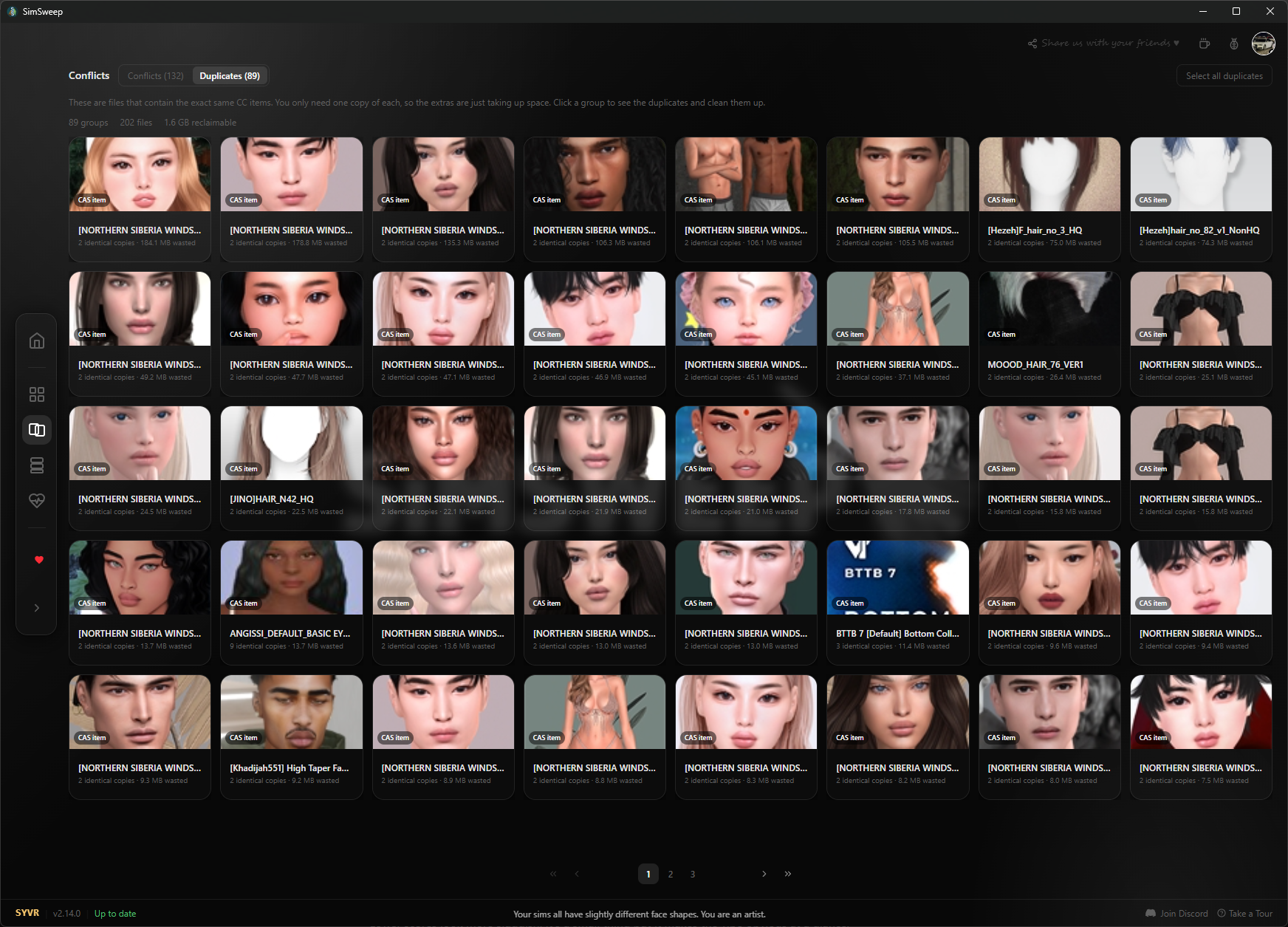
Duplicates are different from conflicts. These are files that contain the exact same CC items. Maybe you downloaded the same hair twice from different sources, or a creator updated a file and you kept both versions. Either way, the extras are just wasting space.

SimSweep groups exact duplicates together and tells you how much space the extras are using. It recommends keeping one (usually the oldest, since that's likely the original) and lets you quarantine the rest.

This is usually the easiest cleanup you can do. If you've got a big folder, you might be surprised how many duplicates are in there.

Duplicates

Usage Analysis

The usage card on your dashboard breaks down your entire Mods folder into categories:

  • Used means your sims are actually wearing or using this CC in your saves and tray data. SimSweep cross-references your save files and tray households to figure this out.
  • Unused means none of your current sims have this CC equipped. It's just sitting in your folder taking up space and adding to your load times.
  • Presets are things like skin details, eyebrow presets, and other CAS items that don't get tracked the same way as clothing or hair.
  • Mods are script mods like MCCC, WickedWhims, or UI Cheats. These aren't CC so usage tracking doesn't apply to them.
  • Build/Buy is custom furniture, wallpaper, flooring, and other objects. These get their own category since they work differently from CAS items.

The unused count is usually the eye-opener. If you've been downloading CC for years, you probably have a ton of stuff that was exciting at the time but hasn't been on a sim since. That's all dead weight slowing down your game.

Usage Analysis

Browsing Your Files

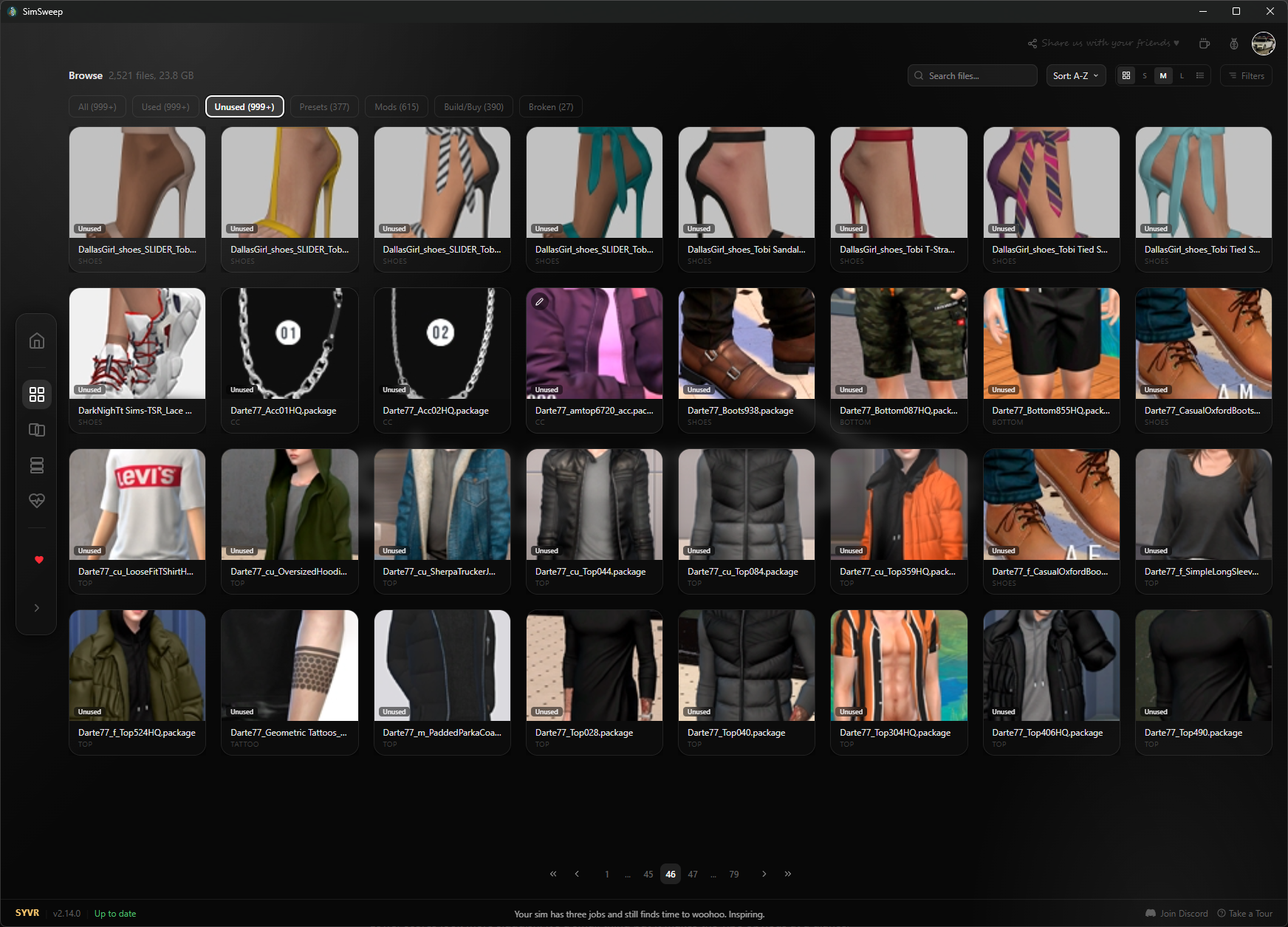
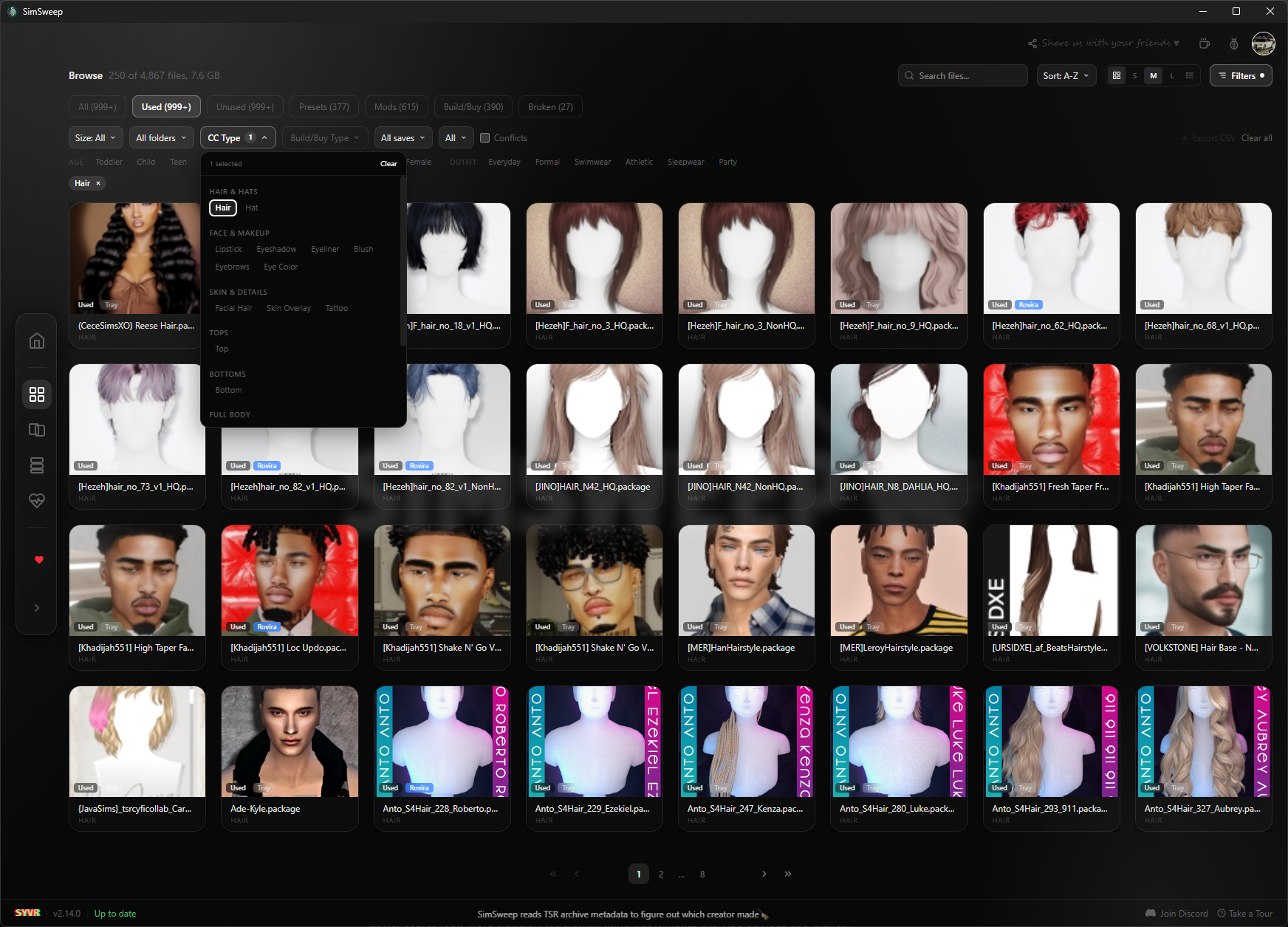
The Browse tab lets you look at every single file from your scan. You can filter by category (used, unused, broken, mods, build/buy, protected) and sort by name, size, newest, or risk level. There's a grid view with thumbnails and a list view if you want more detail per row.

Each file card shows the filename, creator, file size, and a thumbnail if one exists. You'll also see badges for things like conflict involvement, new files since your last scan, content sources (if you're using the browser extension), and risk level for mods that might break on patch day.

For CAS items you can drill even deeper with filters for body type, age, gender, and outfit category. So if you want to see every unused feminine adult everyday top from a specific creator, you can do that.

Browsing Your Files

Quarantine

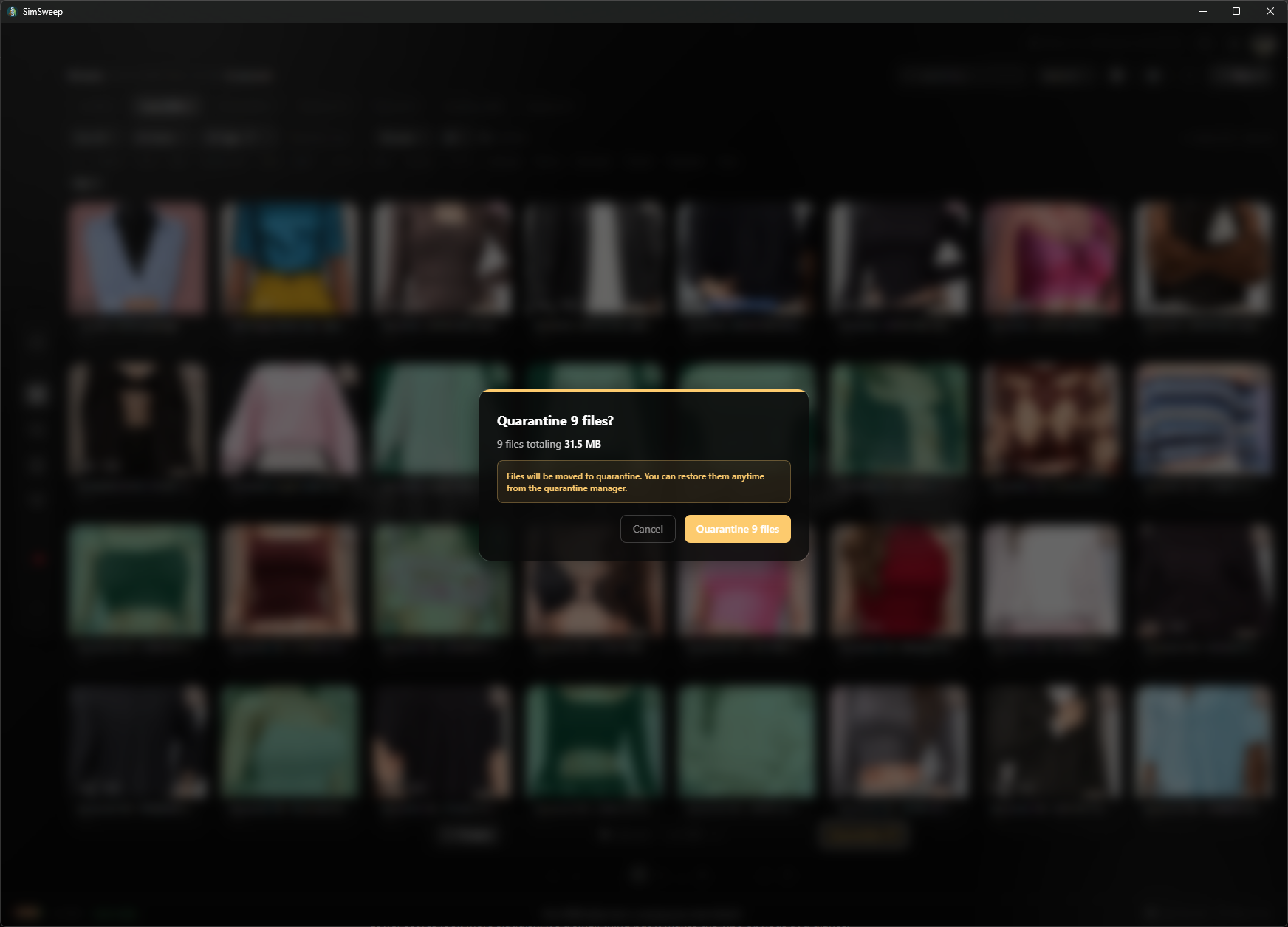
Whenever you remove a file through SimSweep, it goes to quarantine. Not the trash, not deleted forever. Quarantine. The file gets moved out of your Mods folder so the game doesn't load it anymore, but it's still on your computer.

Changed your mind? Open the quarantine manager and restore whatever you want back to your Mods folder. Realized that hair you deleted was actually the mesh for 15 recolors and now everyone is bald? Just restore it.

When you're confident the quarantined stuff is actually junk, you can permanently delete it from there. But there's no rush. Let it sit for a bit, play the game, make sure nothing looks weird first.

Quarantine

Malware Alerts

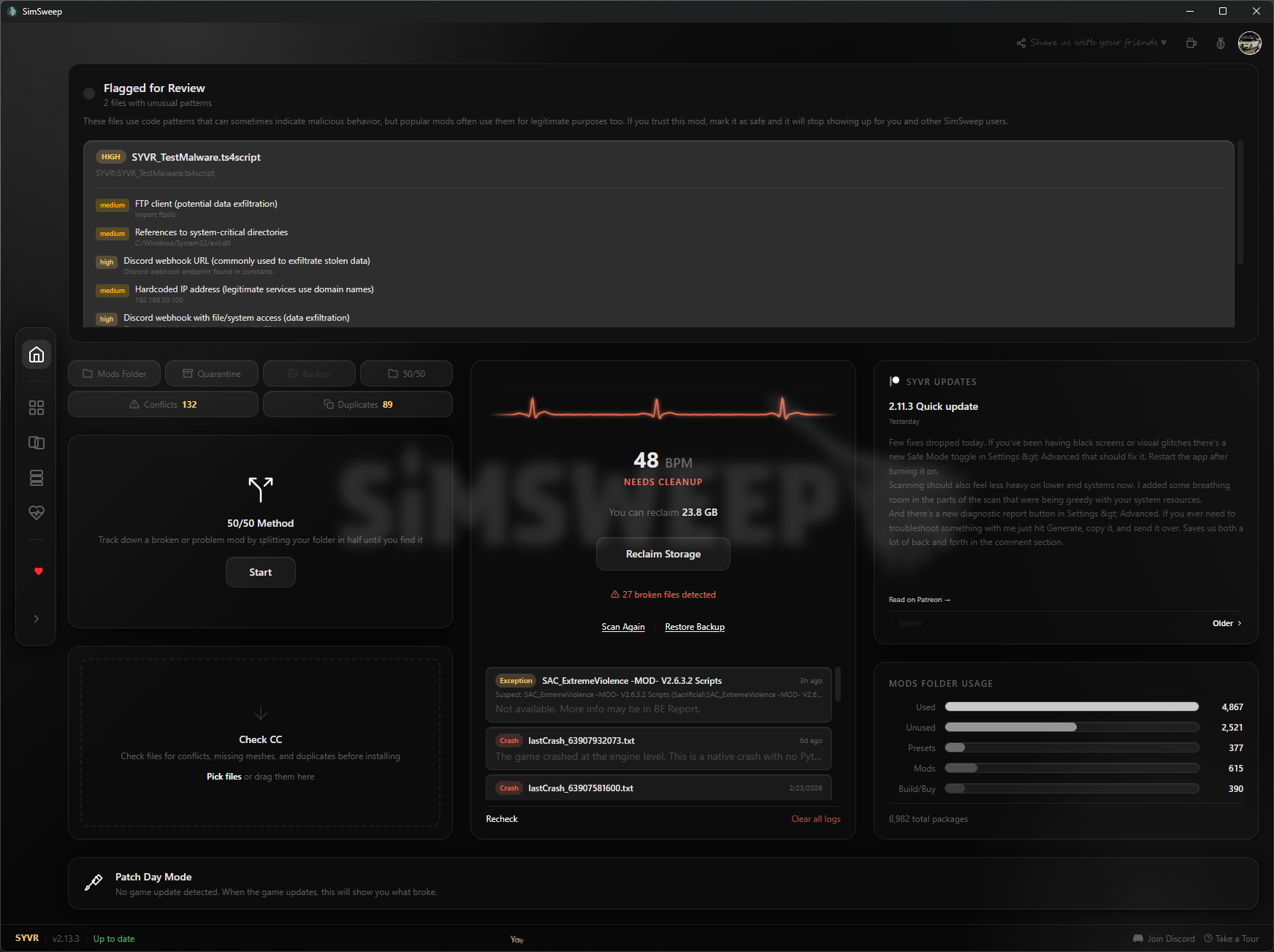
SimSweep scans for known malware signatures in your .package and .ts4script files. If it finds something, you'll see a malware alert card right on your dashboard. You can't miss it.

Threats are sorted by severity. Critical means it matched a known malware signature and you should quarantine it immediately. Lower severities might be flagged for suspicious behavior but aren't confirmed threats.

If you're sure a flagged file is safe (maybe it's a mod you trust from a known creator), you can mark it as safe and SimSweep won't flag it again.

Malware Alerts

What to Do Next

You've got your results. Now what? Here's the general order most people follow:

  1. 1Handle malware first. If anything got flagged, deal with that before touching anything else.
  2. 2Clean up duplicates. Easiest win. These are just wasted space, no downside to removing the extras.
  3. 3Look at conflicts. Start with the high severity groups. If SimSweep recommends keeping one, that's usually the right call.
  4. 4Check broken CC. Look up the creator for missing mesh files. If the file is just corrupt, quarantine it.
  5. 5Trim unused CC. This is where you reclaim the most space but take your time. Scroll through, see if anything looks familiar, and quarantine what you know you don't need.

Remember, everything goes to quarantine first. You can always undo. After you clean up, run another scan to see your new health score.