Fixing Conflicts

Two files want the same spot and only one can win. Here's how to figure out which one to keep.

What Are Conflicts?

A conflict happens when two or more .package files try to replace the same in-game resource. The Sims 4 can only load one version of each resource, so when there's a conflict, one file wins and the other gets silently ignored. No error message, no warning, the game just picks one.

This is why you sometimes see weird stuff in-game. A hairstyle that looks different than the preview, clothing that shows up as the wrong thing, or a piece of furniture that doesn't match its thumbnail. That's usually a conflict.

Conflicts vs Duplicates

SimSweep separates these into two tabs because they're different problems with different fixes.

Conflicts are files that overlap on some resources but aren't identical. They're trying to modify the same things in different ways. You need to look at both files and decide which one you actually want.

Duplicates are files that contain the exact same CC items. You downloaded the same thing twice, or a creator renamed a file and you ended up with both versions. The extras are just wasted space. Pick one, quarantine the rest.

Reading the Conflict Groups

The conflicts tab shows you a list of conflict groups. Each group is a set of files that share overlapping resources. Every group card shows:

  • Resource type tells you what kind of CC is involved. CAS item (hair, clothing, accessories), Build/Buy (furniture, wallpaper, objects), or both.
  • Severity tells you how much the files overlap. This is the most important thing to look at when deciding what to deal with first.
  • File count shows how many files are in the group. Could be two, could be more.
  • Total size so you know how much space is tied up in the conflicting files.

Understanding Severity

Not all conflicts are equally bad. SimSweep labels each group with a severity level based on how much the files actually overlap:

High Severity

50% or more of the resources overlap. These files are almost certainly trying to do the same thing and one of them is getting completely overridden. You should fix these first because something is definitely showing up wrong in your game.

Medium Severity

Partial overlap. The files share some resources but not all of them. This could be intentional. Some CC packs include shared textures or base meshes that naturally overlap. If everything looks fine in-game, you might not need to do anything here.

Start with the high severity groups. Those are the ones actually causing problems. Medium severity groups are worth checking but they're not always an issue.

Inside a Conflict Group

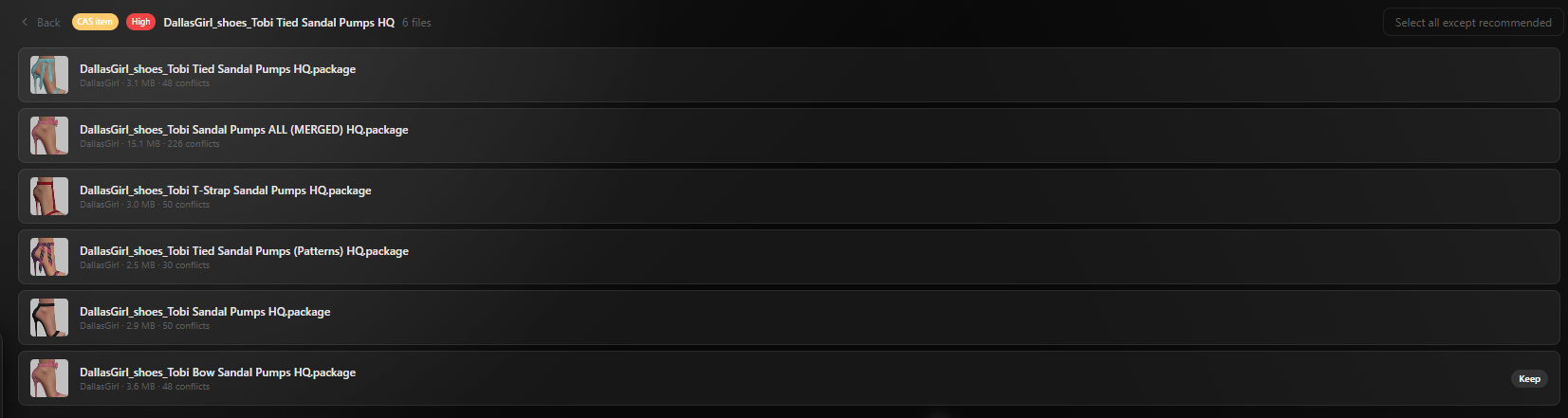
Click on any group to see the files involved. Each file shows its thumbnail, filename, creator, file size, and how many overlapping resource instances it has.

SimSweep marks one file with a green "Keep" badge. That's its recommendation for which file to keep based on which one has the fewest conflicts across your whole collection. It's a good default, but you don't have to follow it.

Use the checkboxes to select files you want to remove, then hit the quarantine button at the bottom. There's also a "select all except recommended" button if you just want the quick fix without thinking too hard about it.

How to Decide Which File to Keep

When SimSweep gives you a recommended keep, it's based on overall conflict count. But you might have your own reasons to prefer a different file. Here's how to think about it:

  1. 1Check the thumbnails. If one of the files is the CC you actually want to use and the other is something you don't care about, that makes the decision easy.
  2. 2Look at the creators. If you recognize one creator and not the other, keep the one you trust.
  3. 3Check the conflict count. A file that's involved in 8 different conflict groups is probably overriding a ton of stuff. The file with fewer conflicts is usually the safer keep.
  4. 4When in doubt, quarantine and test. Remove the file you're less sure about, load the game, and see if things look right. If something's off, just restore it from quarantine.
How to Decide Which File to Keep

Cleaning Up Duplicates

The duplicates tab is usually the easier cleanup. These are files with the exact same CC items, so there's no "which one do I keep" dilemma. They're identical. Just pick one and quarantine the rest.

SimSweep recommends keeping one file per group (usually the oldest, since that's likely the original) and shows you how much space you'll reclaim by removing the extras. There's a "select all duplicates" button that checks every extra copy across all groups so you can clean them up in one shot.

Common ways duplicates happen:

  • Downloading the same file from different sites (TSR, Tumblr, SimFileShare) where the filename is slightly different
  • A creator renamed a file in an update and you have both the old and new version
  • Downloading a CC pack where some items were also included in a bigger collection from the same creator
Cleaning Up Duplicates

Common Conflict Scenarios

Default replacement conflicts

Two creators both made a default replacement for the same base game item. Like two different default skins, or two maxis match eye replacements. Only one can win. Keep whichever one you like better.

Recolor packs with shared meshes

A lot of creators bundle the mesh with every recolor download. If you grab 5 recolors from the same set, you've got 5 copies of the same mesh. SimSweep catches this. Usually medium severity because the mesh is identical across all the files so it doesn't actually cause visual issues, but the duplicated data is still wasting space.

Override mods stepping on each other

Gameplay mods that override the same tuning files. For example, two mods that both change how fast sims eat, or two mods that modify the same interaction. These are high severity and one of the mods just isn't working in your game. You need to pick one.

Build/Buy conflicts

Custom furniture or objects that override the same base game items. Less common than CAS conflicts but they happen, especially with default replacements for kitchen counters, windows, and other popular items.

Tips

  • Fix high severity first. Those are actually causing problems in your game right now. Medium severity might not be worth touching if everything looks fine.
  • Everything goes to quarantine. You're not permanently deleting anything. If you quarantine the wrong file and something looks off in-game, just restore it.
  • Rescan after resolving. Once you've dealt with a batch of conflicts, run another scan. Your health score should go up and you might find that resolving some groups also cleared up others.
  • Don't stress about zero conflicts. If you have a big CC collection, you're always going to have some conflicts. That's normal. Focus on the high severity ones and don't worry about getting the number to zero.